How to Set Up DocuCodes
Jesse Reitz, Founder of DocuCodes |
Join the Mission to Fix Documentation
We are building DocuCodes to eliminate the knowledge tax for engineering teams everywhere. Sign up now to be among the first to help us shape the future of software documentation.
This post walks you through setting up your DocuCodes account by authorizing it to access your GitHub content.
GitHub Authentication
Depending on your plan, DocuCodes offers two methods of authenticating with GitHub.
- Personal plans - Personal Access Tokens
- Team plans - DocuCodes GitHub App
Personal Plan - Personal Access Tokens
Personal Access Tokens are associated with your individual GitHub user account and, by extension, your individual DocuCodes user account. Only DocuCodes Personal Plans support authentication using GitHub Personal Access Tokens.
GitHub offers two types of personal access tokens: "Classic" and "Fine-Grained". Learn more in the official GitHub documentation. DocuCodes recommends using a Classic Token because they are easier to generate and provide more seamless access across multiple organizations. Fine-grained tokens require you to choose a single account or organization to access, meaning they are inherently limited to a single account or organization.
Classic Tokens
You can use the link below to create a Classic personal access token.
Create a Classic GitHub Token with the required scopes
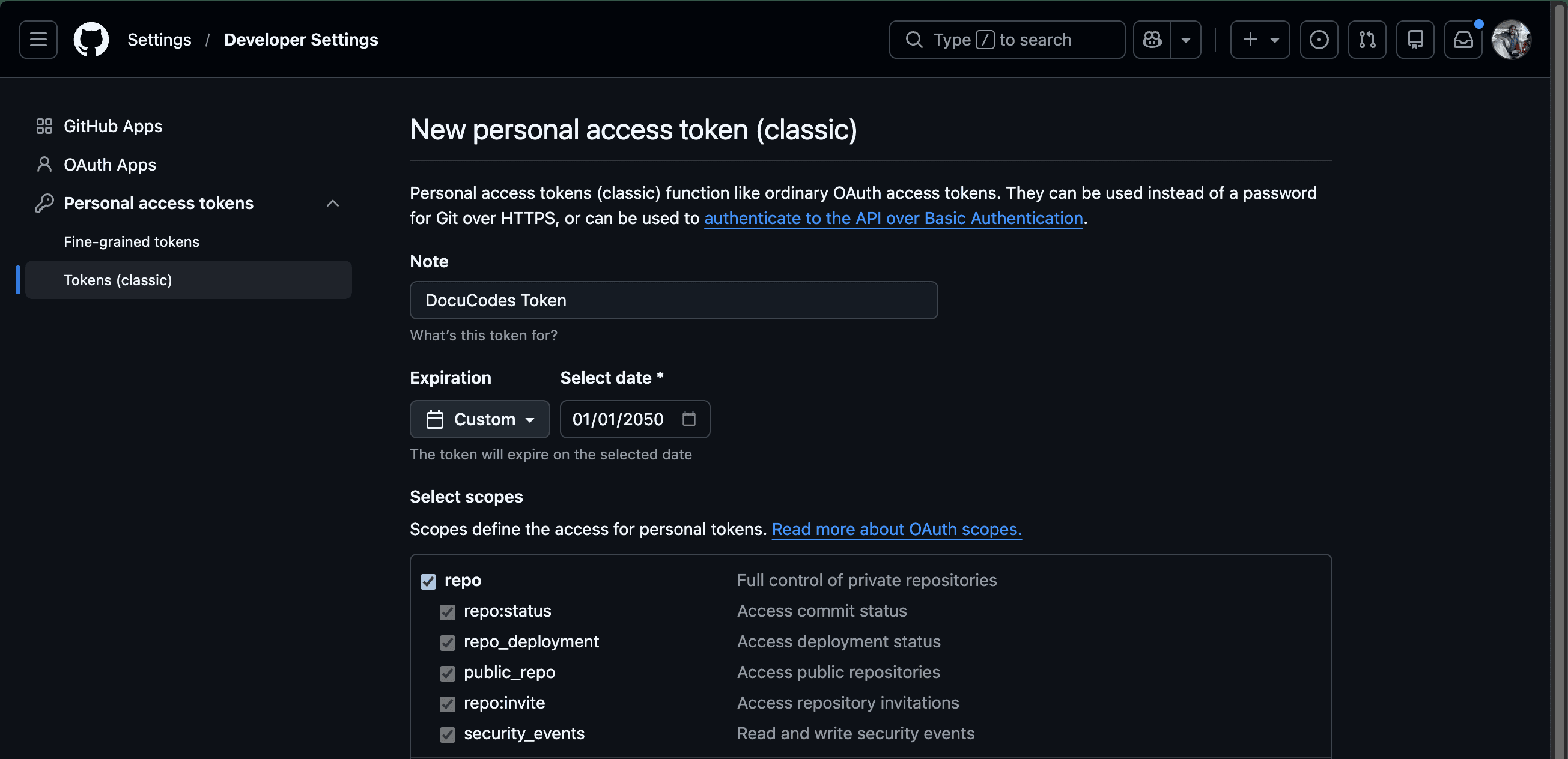
To manually create a classic token:
- Access classic tokens by going to "Settings" -> "Developer settings" -> "Personal Access Tokens" -> "Tokens (classic)"
- Click "Generate" -> "Generate new token (classic)"
- Enter a note (optional). This is for your own reference in GitHub.
- Enter an expiration date. Set the expiration date to whatever you choose. PLEASE NOTE: DocuCodes does not keep track of this expiration date. You must update your PAT if it expires. To avoid this, you can set the expiration to "No expiration" or to a date far in the future.
- Select scopes. Your PAT needs the following permissions:
repo
- Click "Generate Token"
- Your token will be displayed. Copy your token and add it to DocuCodes (see below)
Fine-Grained
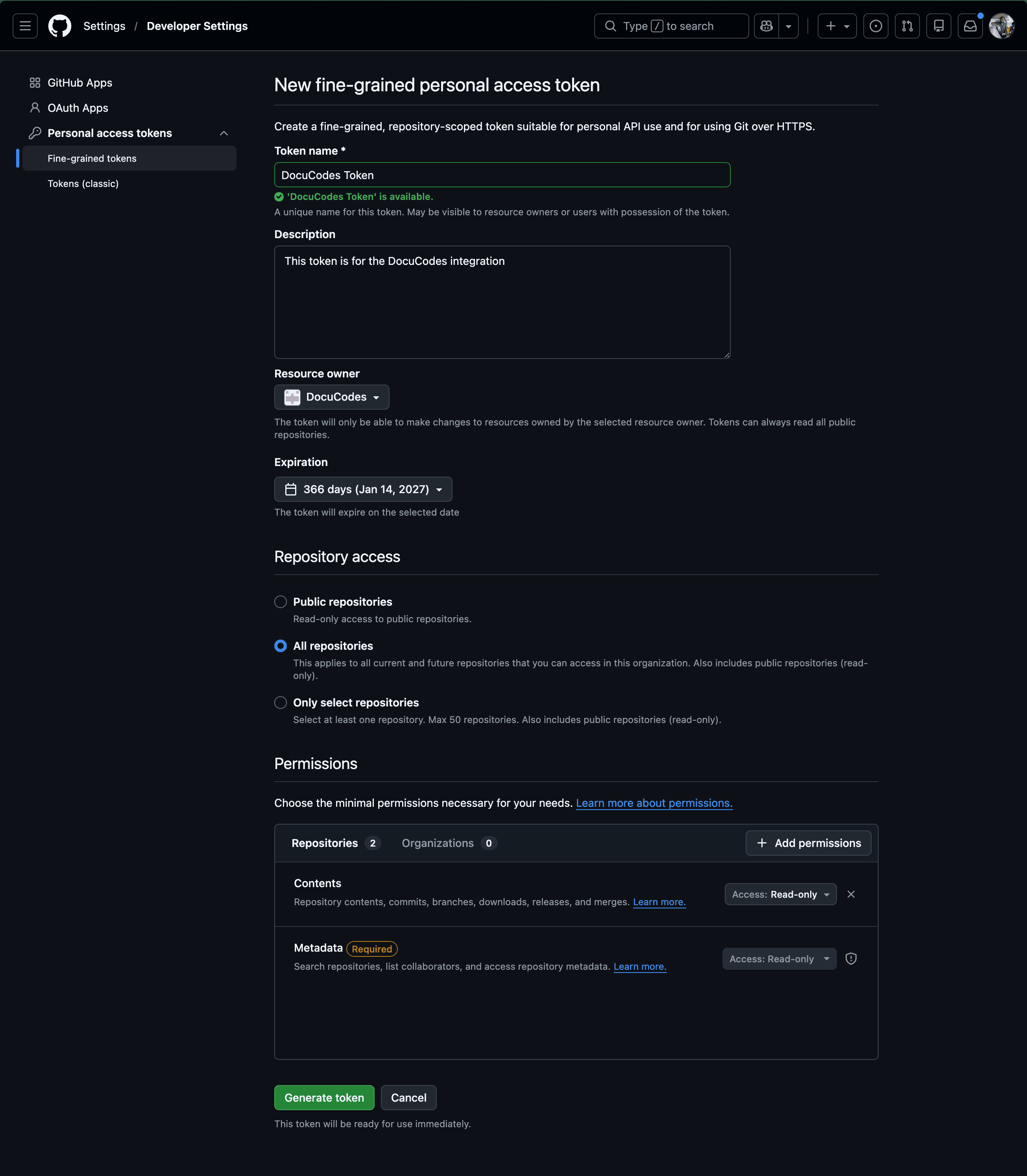
- Access fine-grained tokens by going to "Settings" -> "Developer settings" -> "Personal Access Tokens" -> "Fine-grained tokens"
- Give your token a name and (optional) description. These are just for your own convenience within GitHub.
- Resource owner - This will determine whether your PAT can access repositories in organizations you have access to.
- Expiration - Set the expiration date to whatever you choose. Fine-grained tokens currently have a maximum age of one year. PLEASE NOTE: GitHub requires an expiration date for fine-grained tokens (maximum 1 year). DocuCodes does not keep track of this date, so you will need to manually rotate your token before it expires to avoid service interruption. To avoid this, use a "Classic" token instead.
- Repository access - Choose which repositories you want to access.
- Permissions - Your PAT needs the following permissions:
Contents- read only permission
- Click "Generate Token"
- Your token will be displayed. Copy your token and add it to DocuCodes (see below)
Adding the Token to DocuCodes
Once you have your access token, copy it and head back to DocuCodes.
- Navigate to Settings in DocuCodes
- Paste your PAT into the box labeled "GitHub Personal Access Token"
- Click "Save Token"
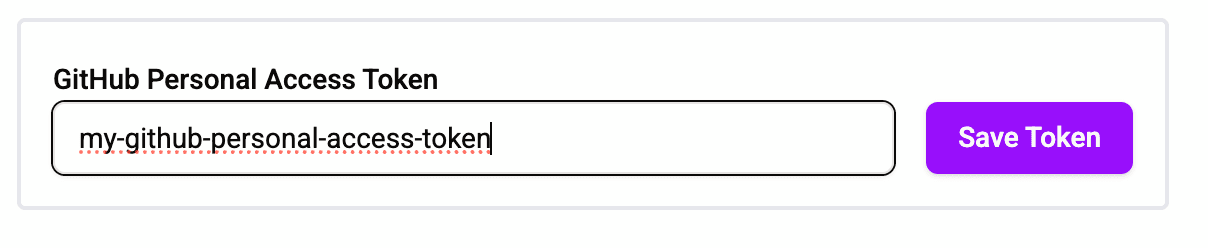
Once you save your token in DocuCodes you will be unable to edit it. In order to update your token you will need to delete the existing token and add a new one.

Team Plan - GitHub App
DocuCodes Team plans enable you to integrate with GitHub using the official DocuCodes GitHub app. This allows greater security and access control.
Note: Only admins can install GitHub apps within DocuCodes.
Install the DocuCodes GitHub App
- Navigate to Settings in DocuCodes
- Confirm you see "Not Installed" under "GitHub App Install Status"
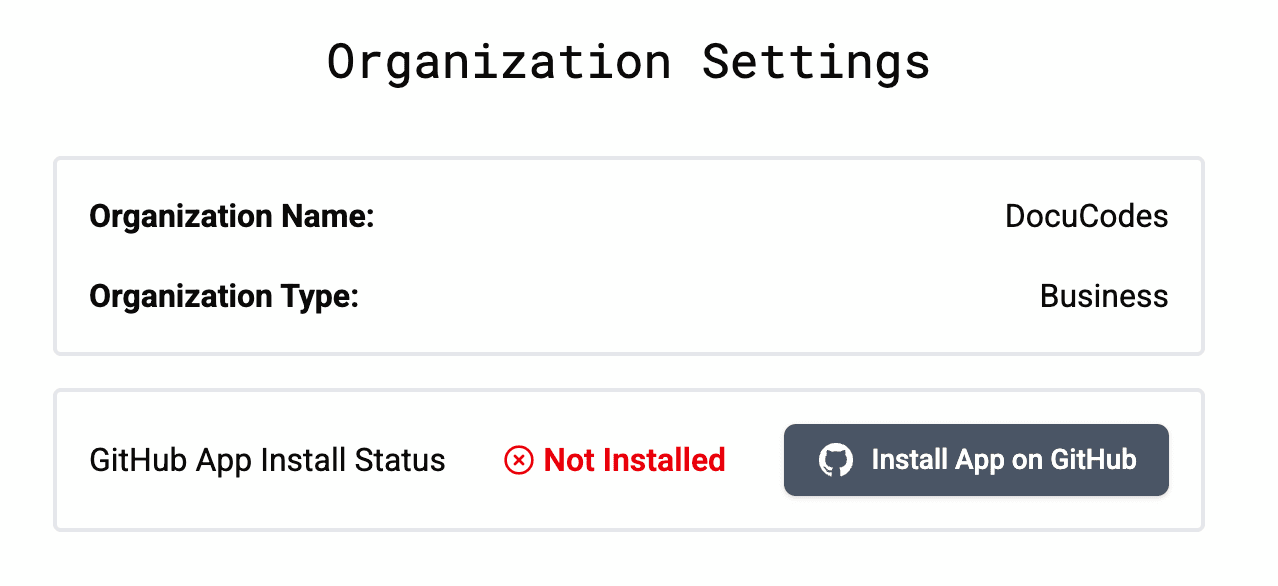
- Click "Install App on GitHub"
- Choose the installation target (this applies if you belong to multiple organizations or have a personal account and an organization account).
- Choose whether DocuCodes should be able to access "All repositories" or "Only select repositories"
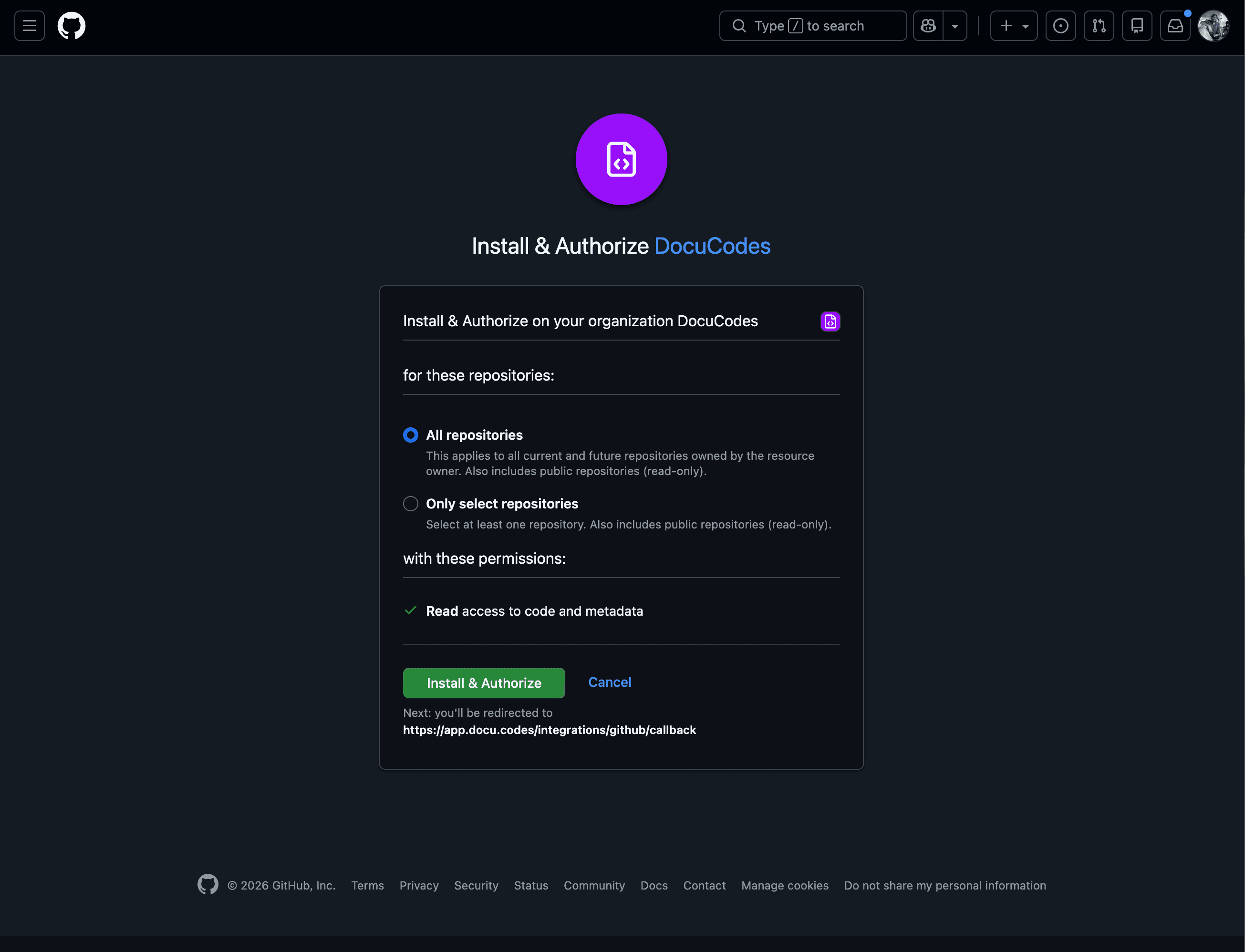
- Click "Install & Authorize"
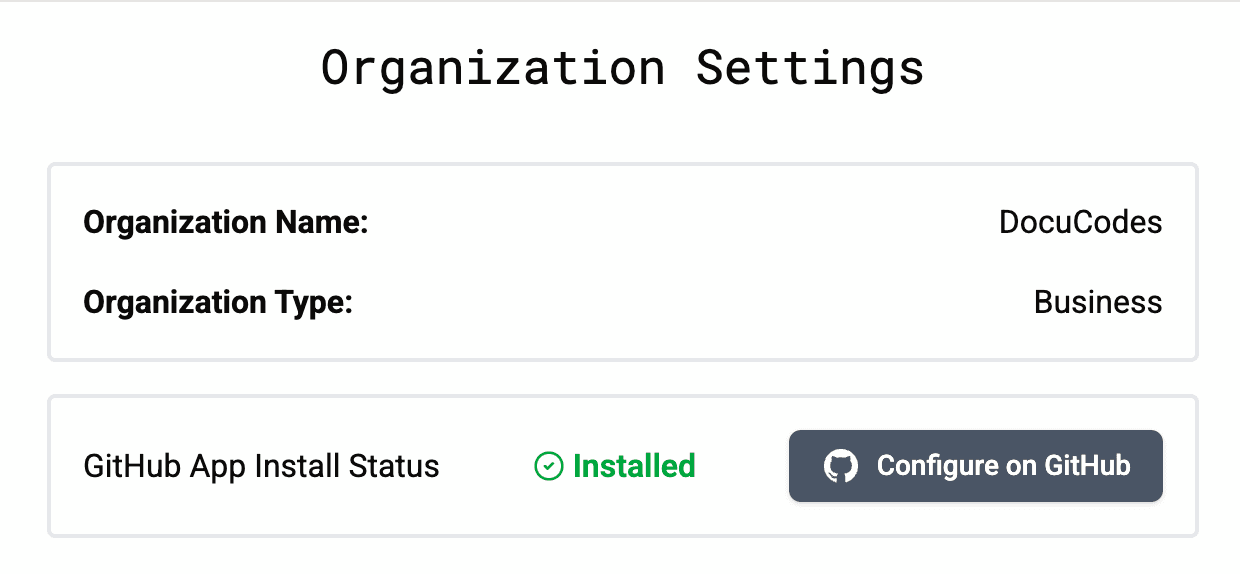
- You will be redirected to DocuCodes. Confirm the "GitHub App Install Status" now shows "Installed"
Join the Mission to Fix Documentation
We are building DocuCodes to eliminate the knowledge tax for engineering teams everywhere. Sign up now to be among the first to help us shape the future of software documentation.