How to Create Your First Flow
Jesse Reitz, Founder of DocuCodes |
Join the Mission to Fix Documentation
We are building DocuCodes to eliminate the knowledge tax for engineering teams everywhere. Sign up now to be among the first to help us shape the future of software documentation.
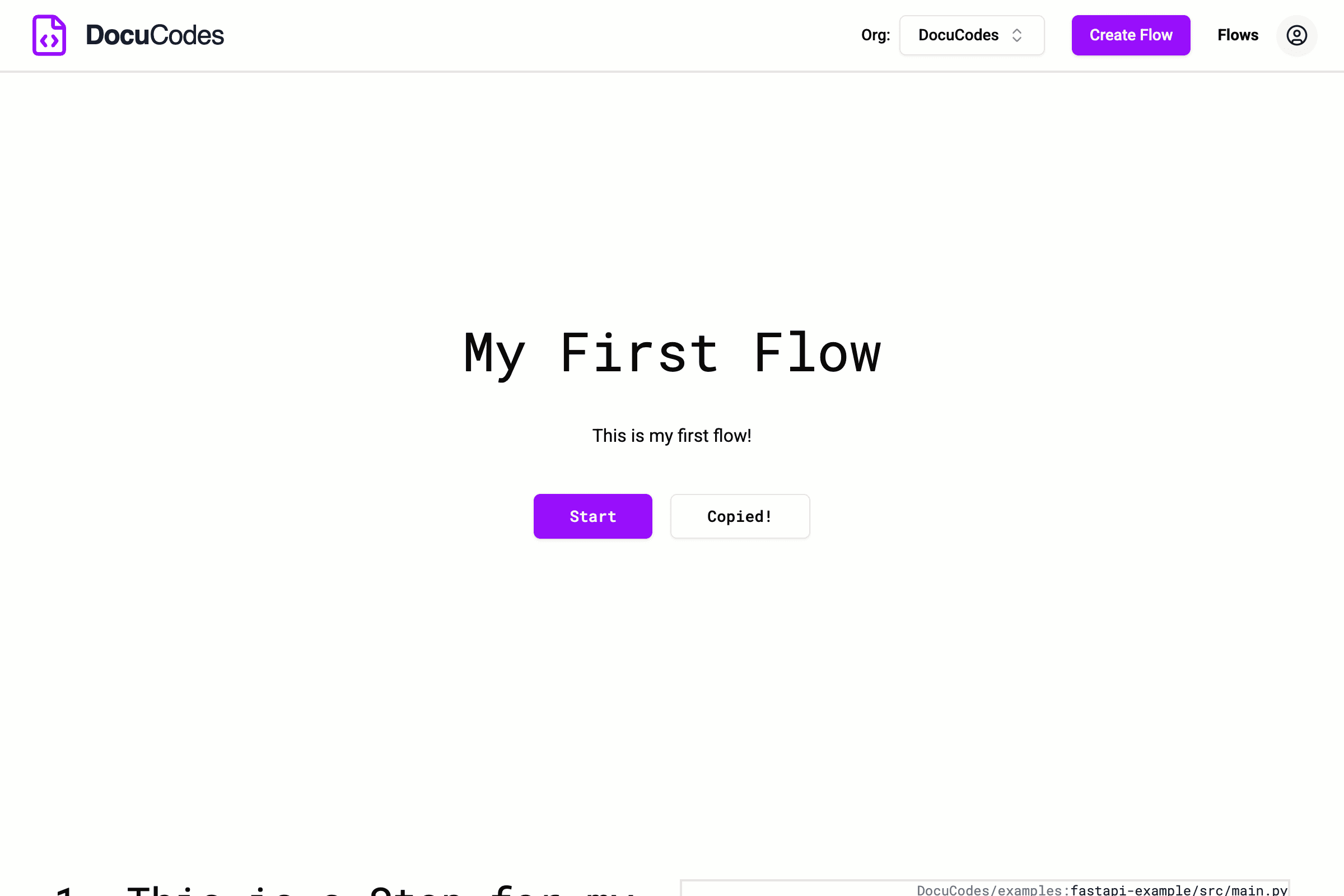
This post walks you through how to create your first DocuCodes Flow.
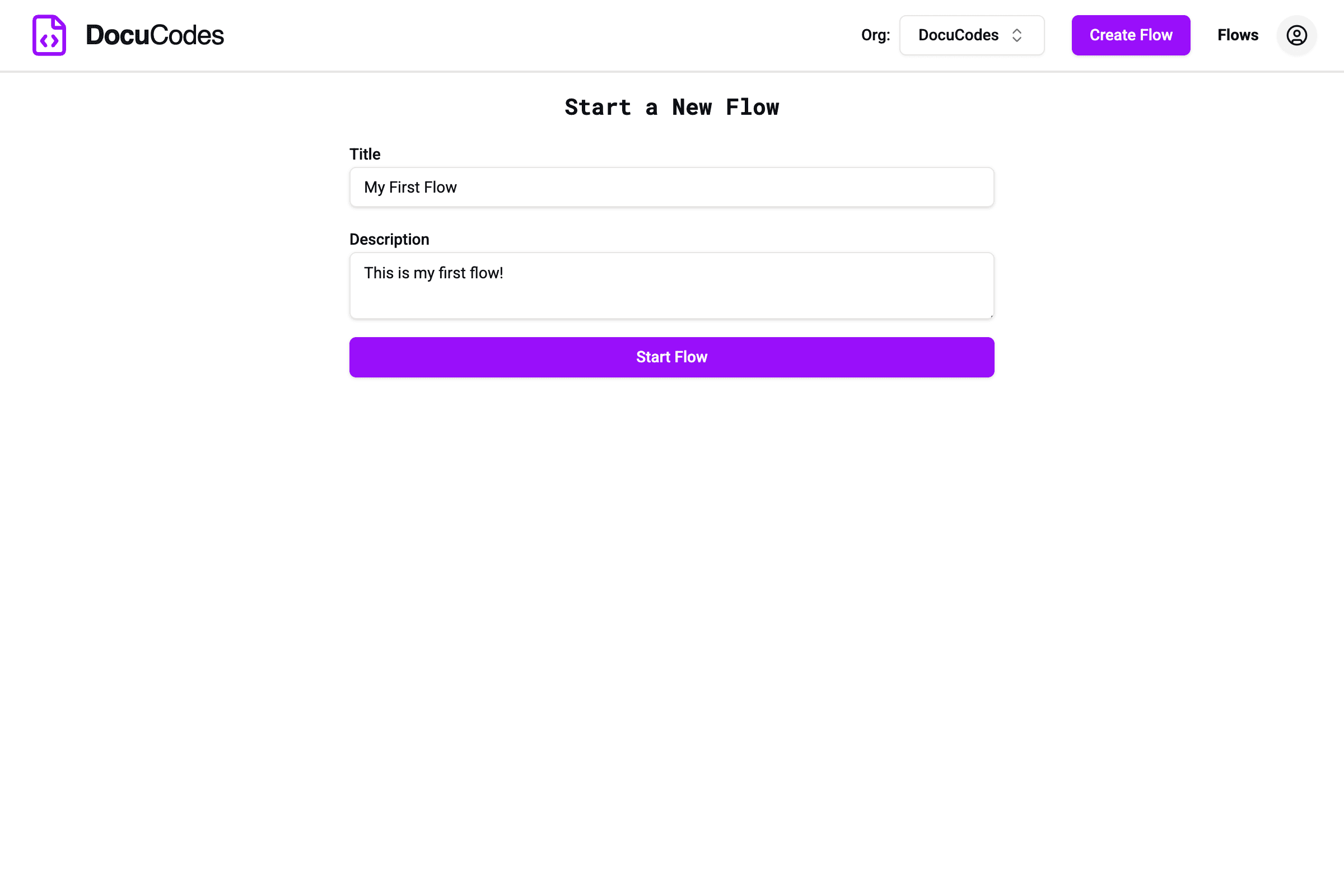
Create a Flow
- Click "Create Flow"
- Enter the top-level Flow information:
- "Title" - The title for your flow
- "Description" - An optional description for your flow
- Click "Start Flow"
- Add Stops as described below
Choose Your Code Snippet
Each Stop in your Flow needs an associated code snippet. To add a Stop you need a link to the code snippet on GitHub. We recommend using a permalink to ensure you reference code as part of a specific commit. You can generate GitHub permalinks in several ways.
Pro-Tip: Using the VS Code extension is the fastest way to build a Flow. You can trace your logic in your editor and grab permalinks without ever going to GitHub. See more below.
GitHub
You can copy permalinks directly in GitHub. GitHub provides the following guides:
For quick reference:
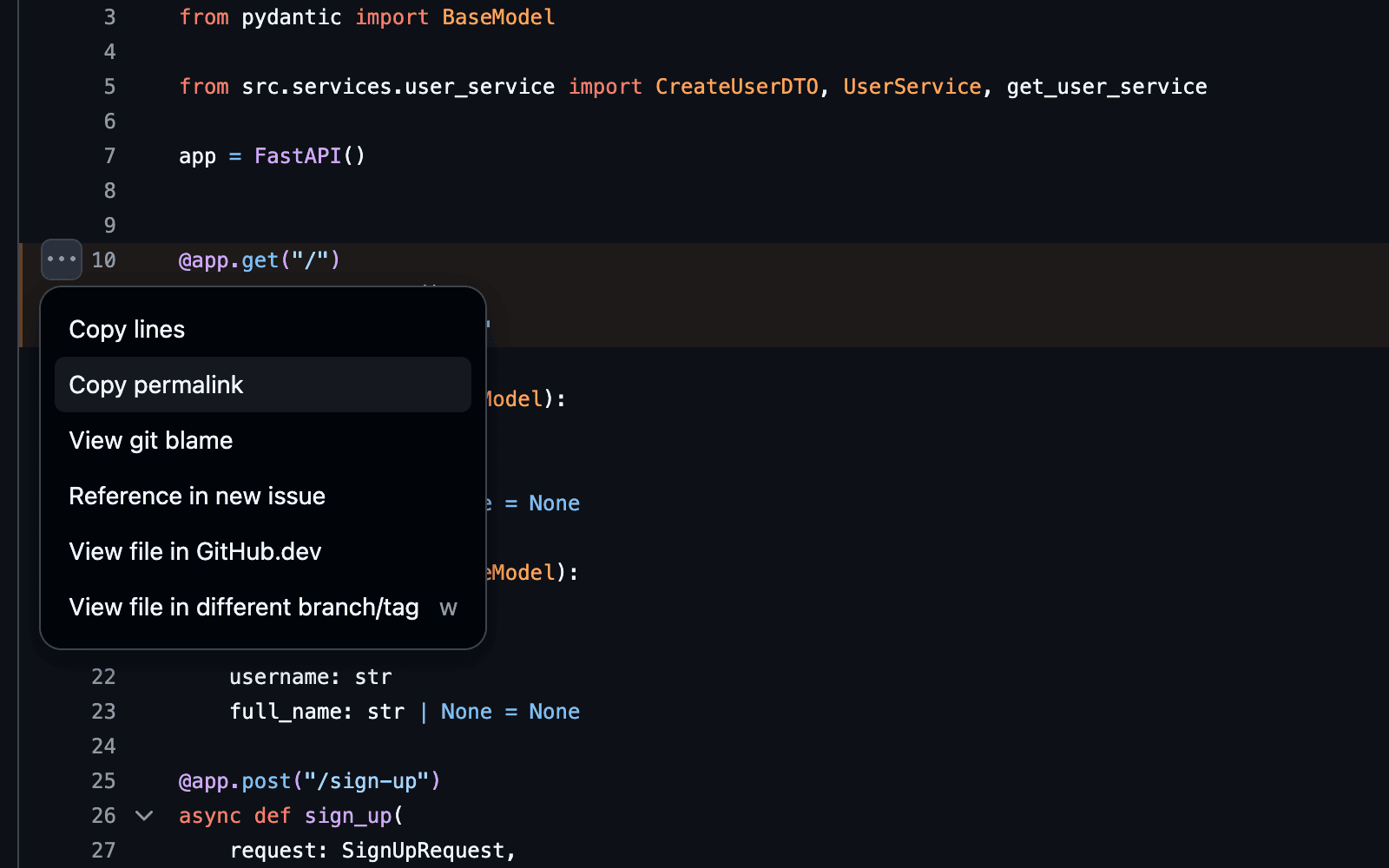
To copy a permalink to a code snippet
- Select the lines you want to copy
- Click the 3-dot button that appears
- Click "Copy permalink"
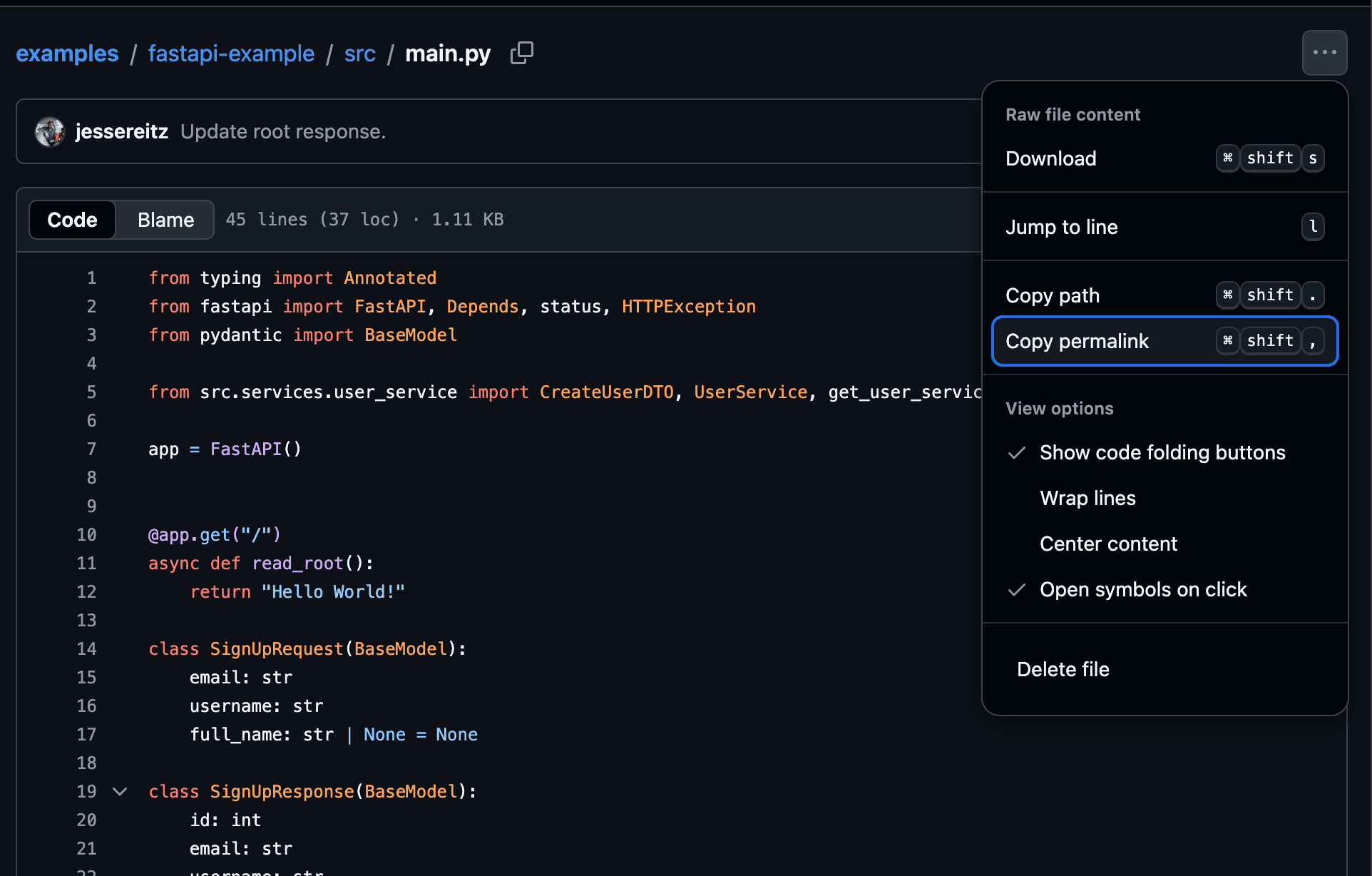
To copy a permalink to an entire file
- Navigate to the file you want to link to
- Click the 3-dot button in the top right
- Click "Copy permalink"
VSCode
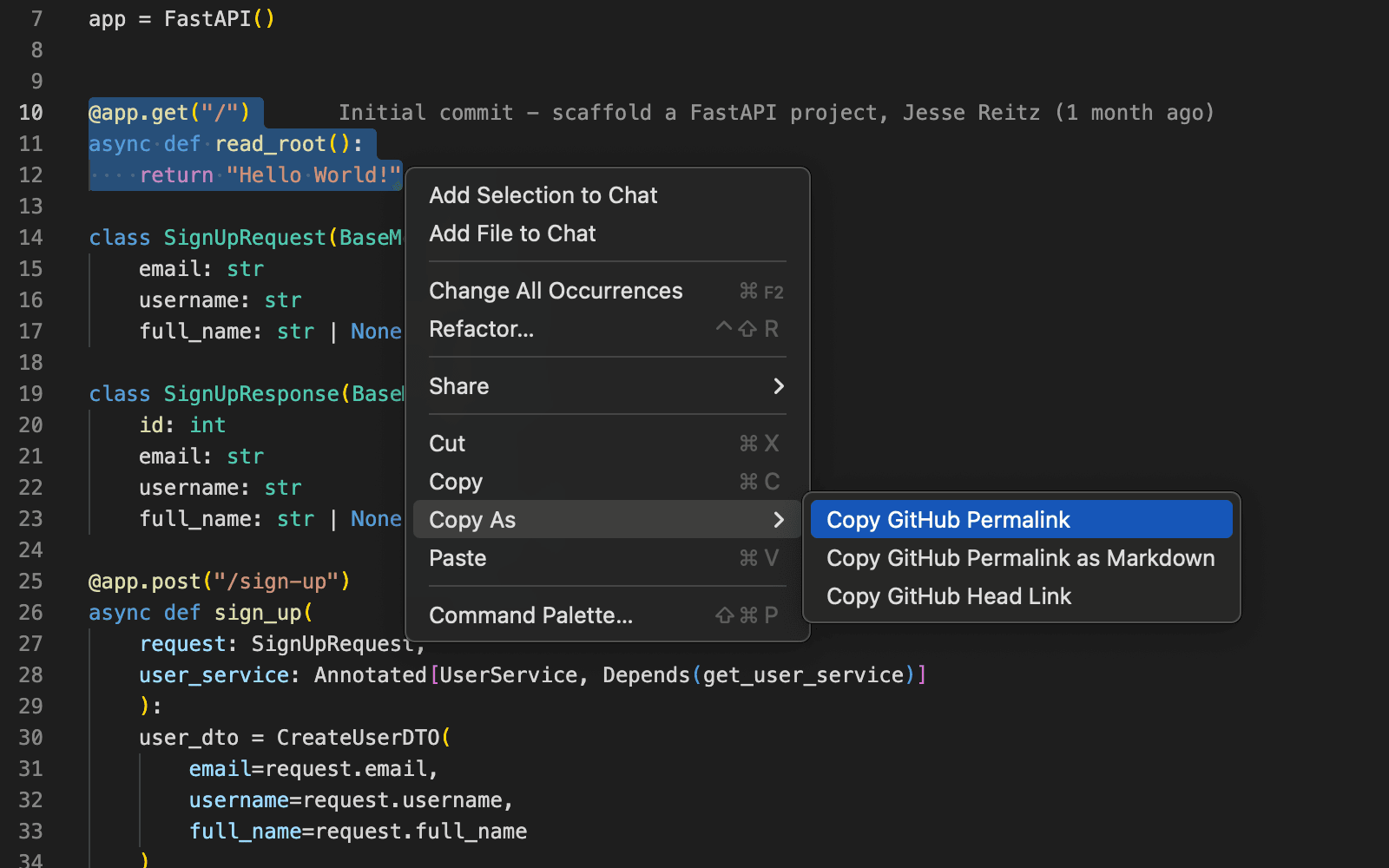
The official GitHub Pull Requests extension adds a "Copy as" option to the context menu. From here you can select "Copy GitHub Permalink" to get a permalink compatible with DocuCodes.
JetBrains Products (IntelliJ, PyCharm, PhpStorm, etc.)
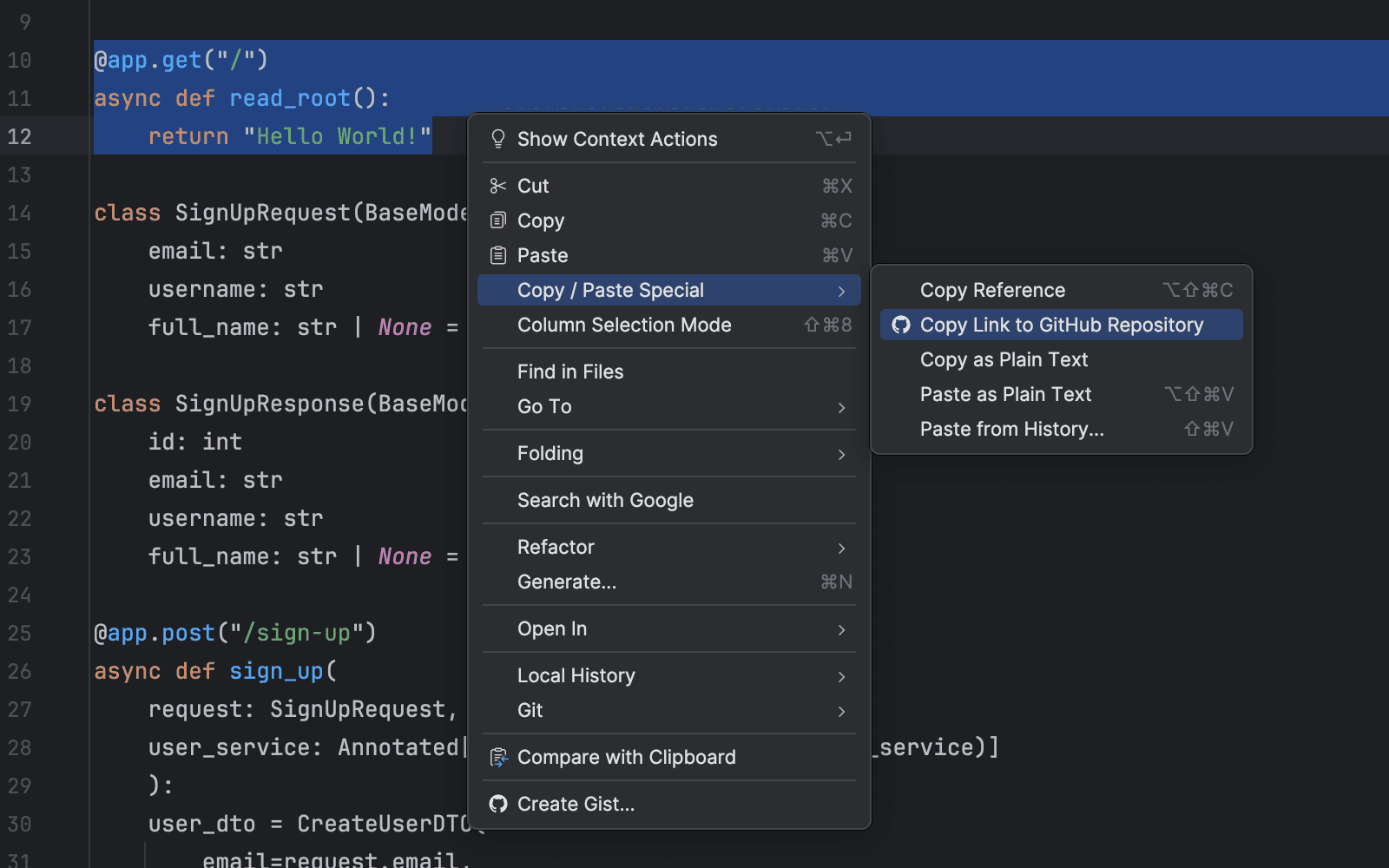
JetBrains products generally include plugins for working with GitHub pre-installed. You can find an option "Copy Link to GitHub Repository" in the context menu when selecting a code snippet. This will copy a permalink to the snippet in GitHub.
Add a Stop to Your Flow
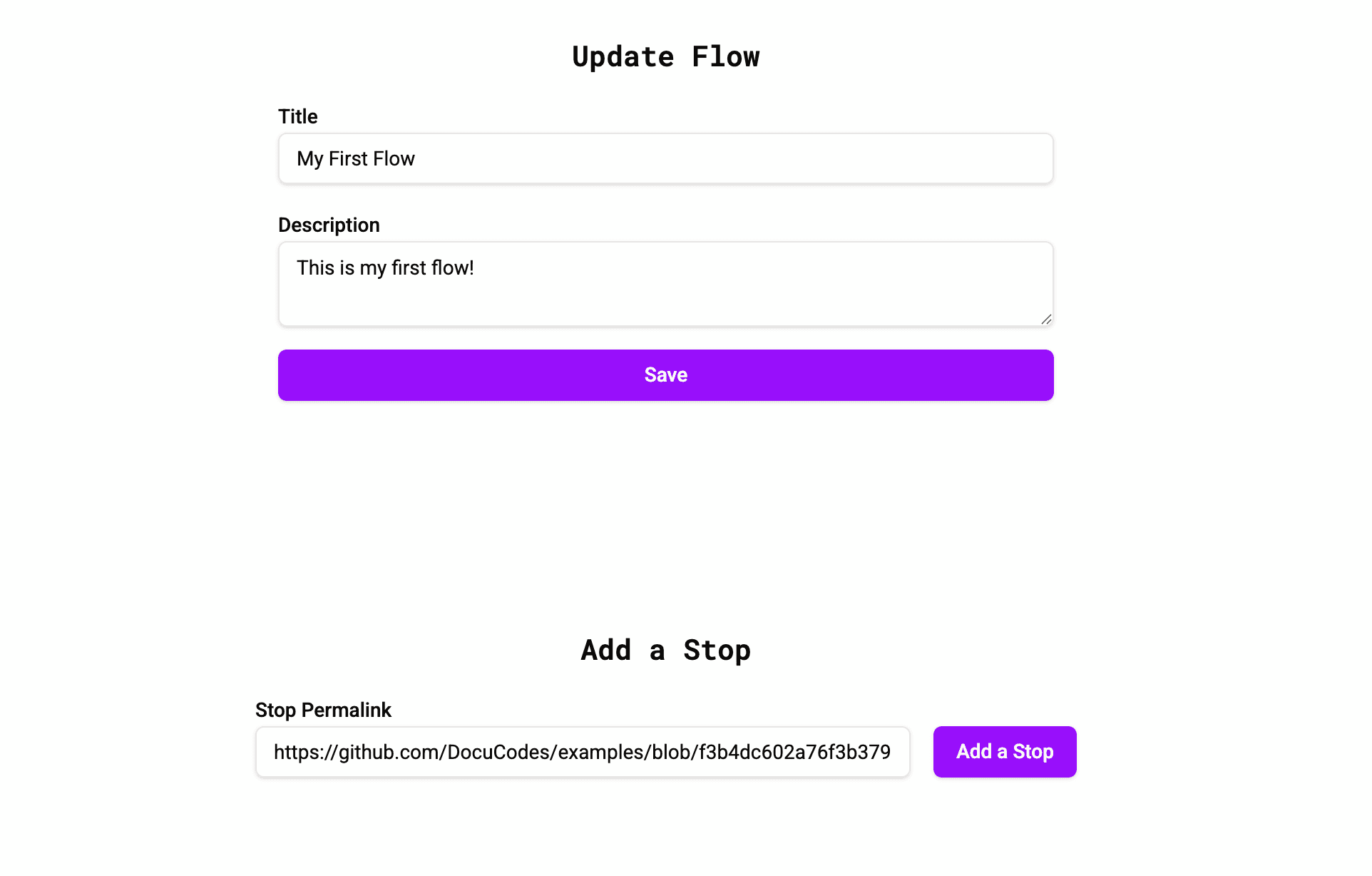
Once you have a permalink, you can add a Stop to your Flow.
- In your Flow, paste your permalink into the "Stop Permalink" input
- Click "Add a Stop"
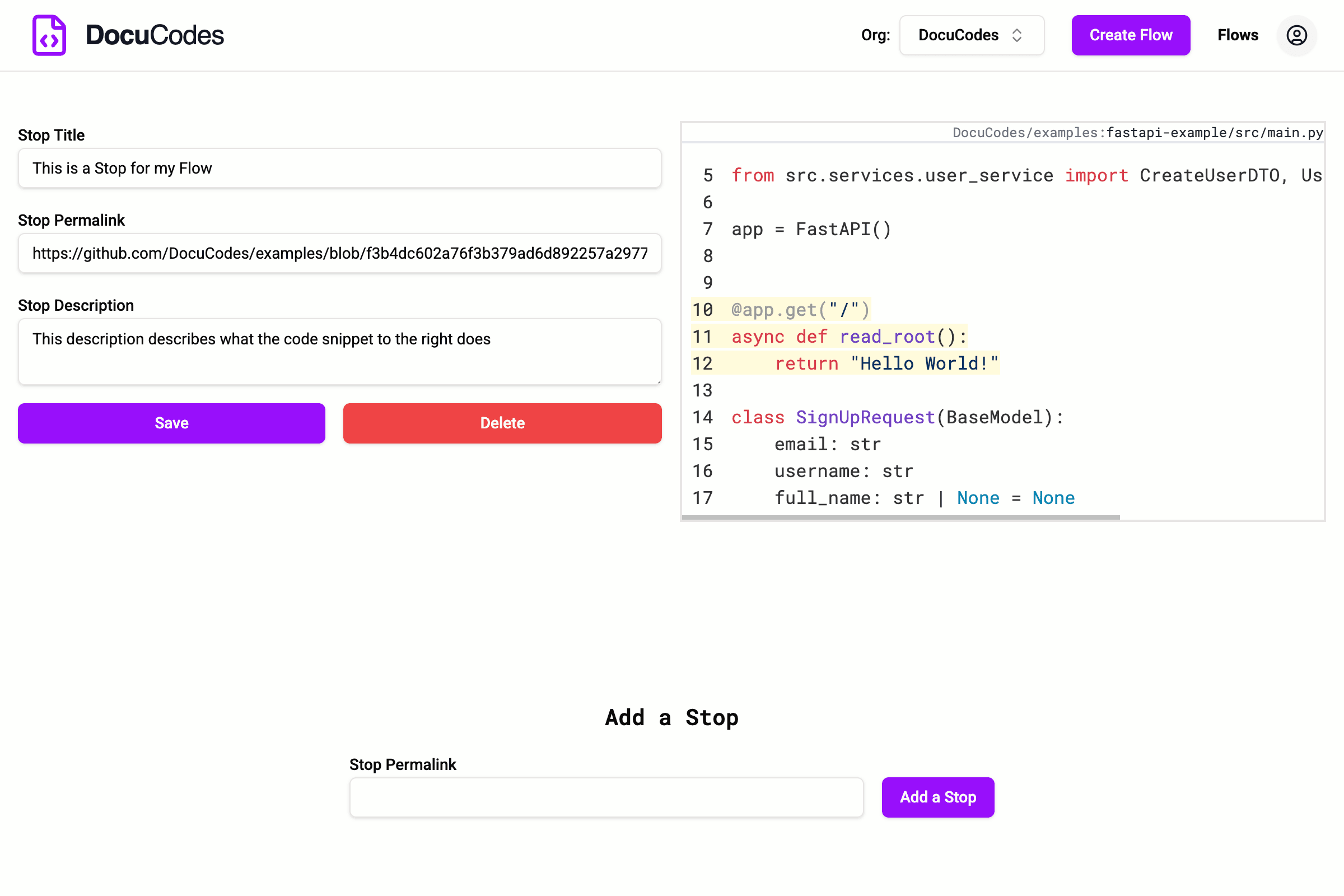
- Your code snippet will appear along with an option to add a "Stop Title" and a "Stop Description". You can also delete your new Stop.
Viewing Your Flow
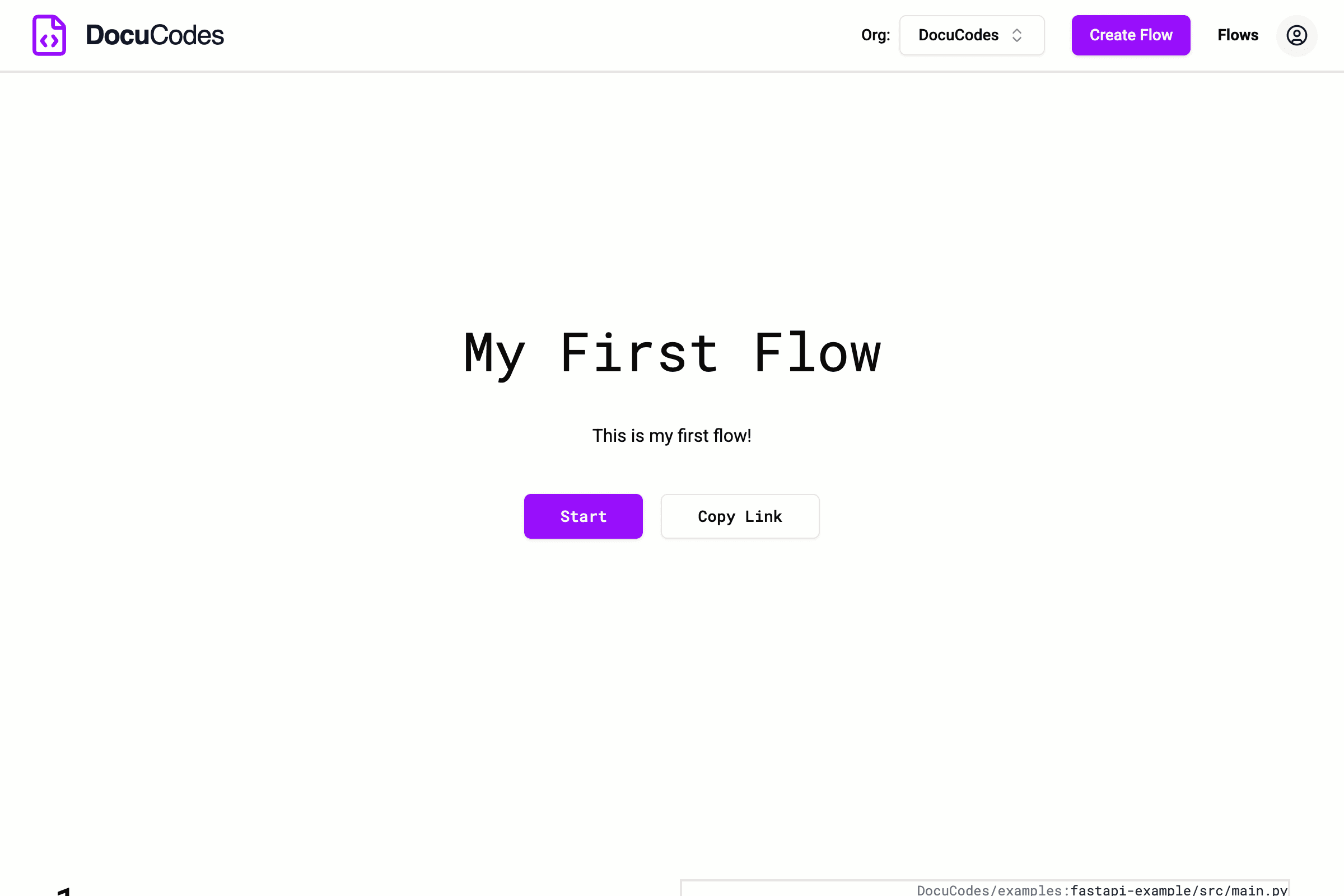
From the homepage in your DocuCodes account, click "View" on the Flow you want to open.
- Click "Start" to begin to view the Flow. You will step through each Stop in the Flow.
- Click "Copy Link" to share your Flow (see the "Sharing Your Flow" section below).
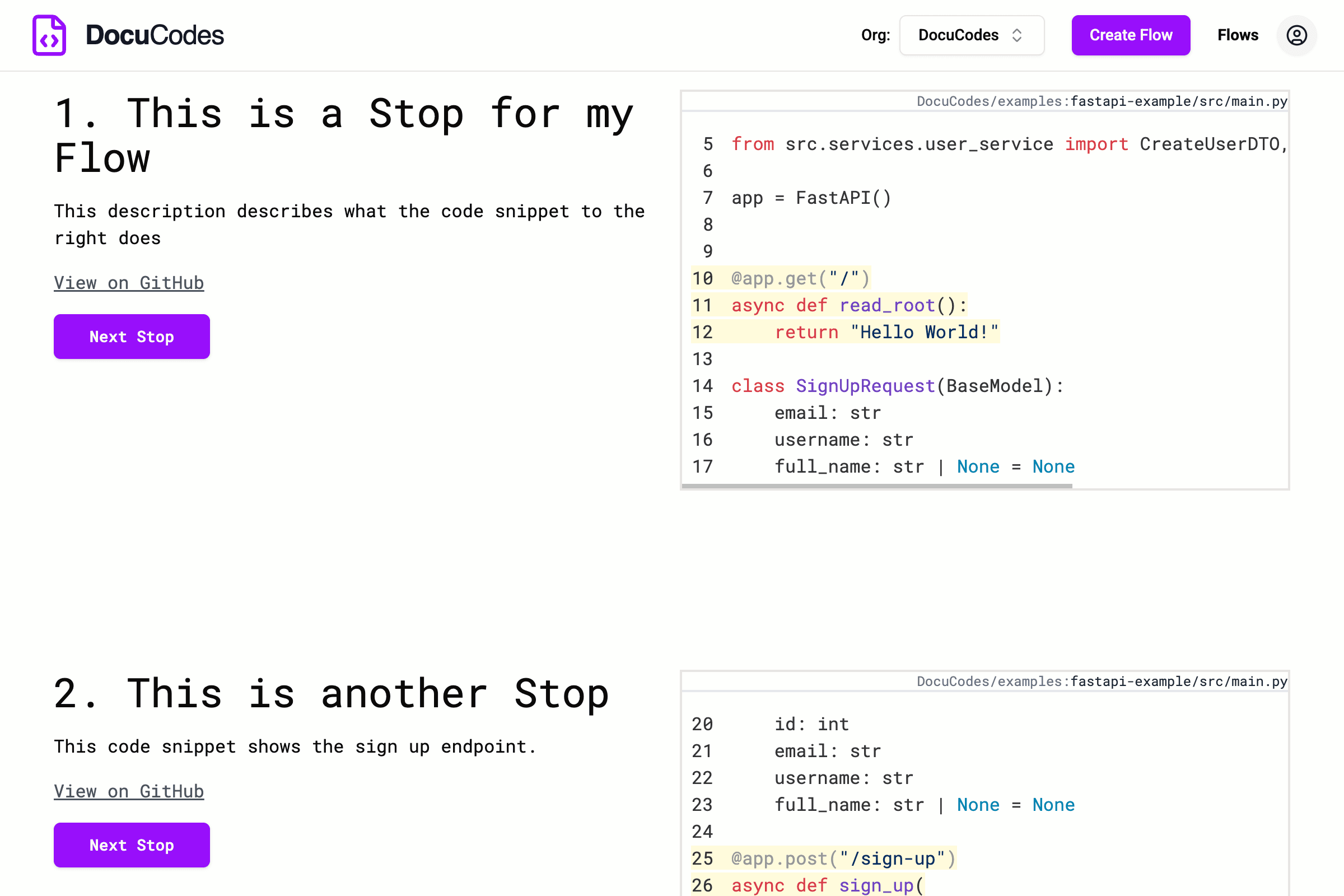
Click "Next Stop" to step through each Stop in your Flow.
Sharing Your Flow
- From your DocuCodes home page, click "View" for the Flow you would like to share
- Click "Copy Link"
- You will see a confirmation that a link to the Flow has been copied to your clipboard
- Paste this link in order to share it with others
Note: Copied links are public. Anyone who has the link will have access to view your Flow. This means they will be able to view any code contained in your Flow. They will not be able to access the code on GitHub, only the specific snippet contained in the Flow. Only members of your team account (if applicable) can edit or delete it.
Join the Mission to Fix Documentation
We are building DocuCodes to eliminate the knowledge tax for engineering teams everywhere. Sign up now to be among the first to help us shape the future of software documentation.